ChatGPT
MCP is currently in testing on ChatGPT. Please enable “Developer mode” first before using.
1. Open ChatGPT, click on your profile icon at the bottom left, and select “Settings”
2. Go to “Apps” from the settings menu, and click on “Advanced settings”
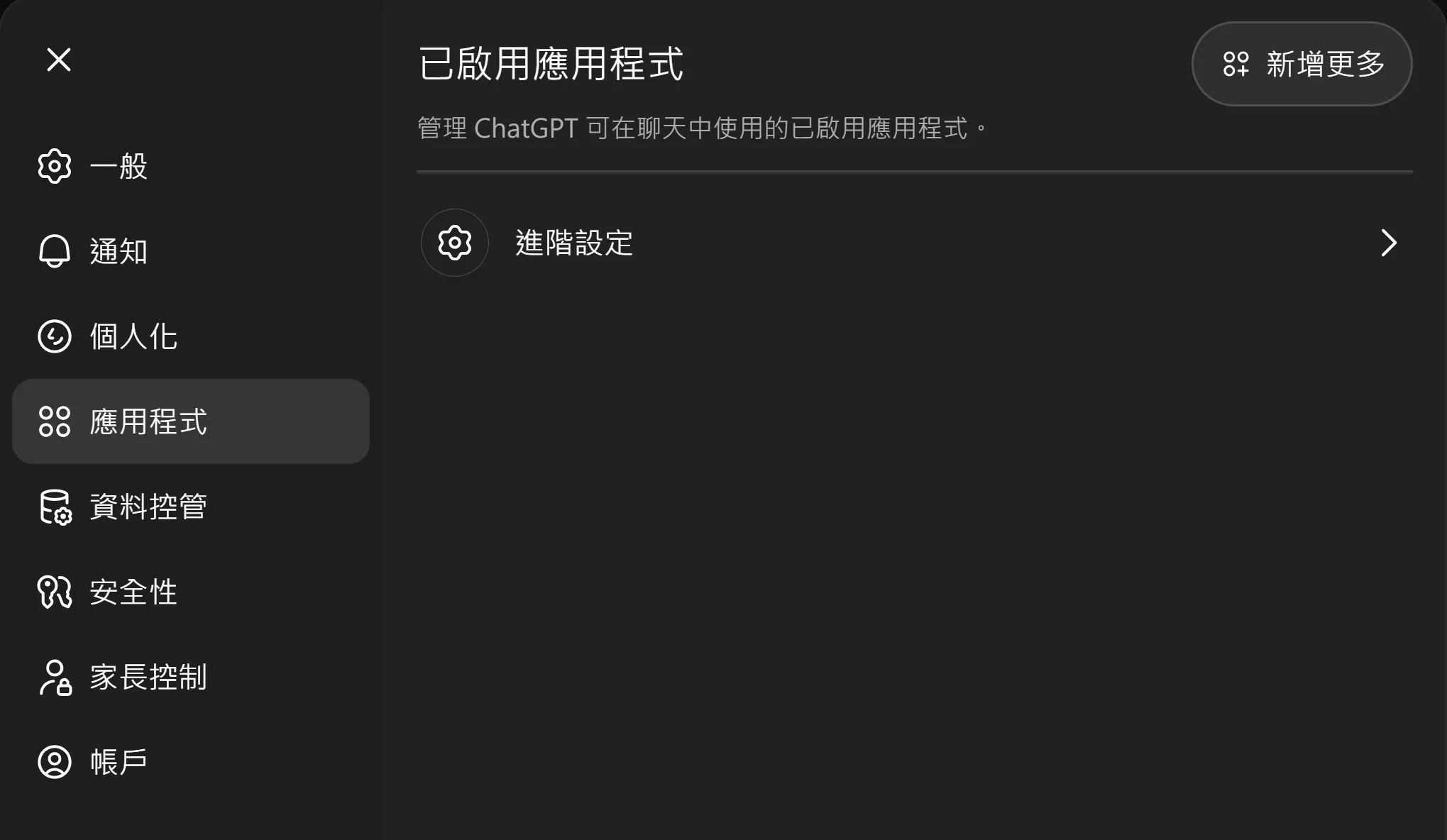
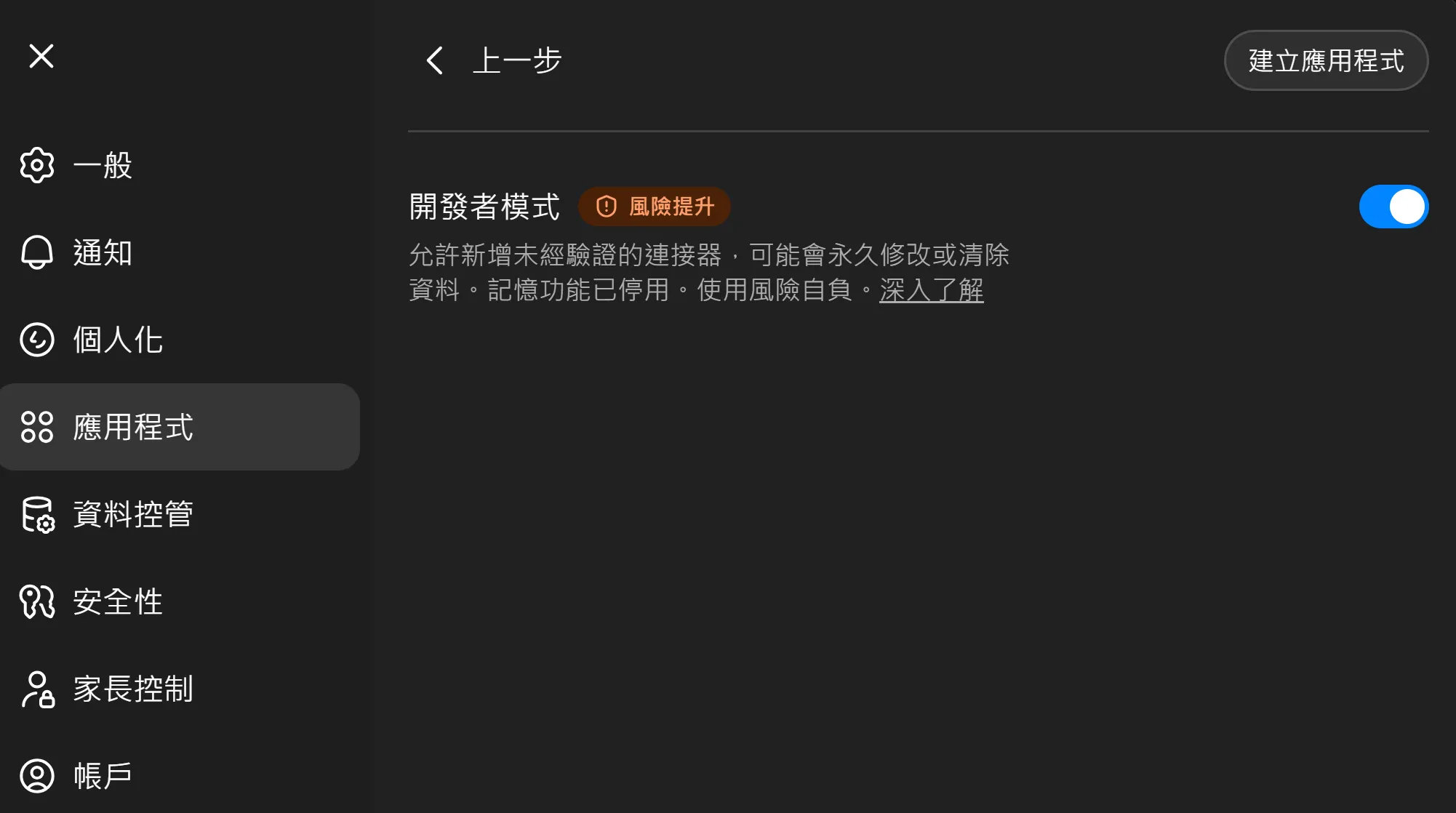
3. Enable “Developer mode”, then click “Create application”
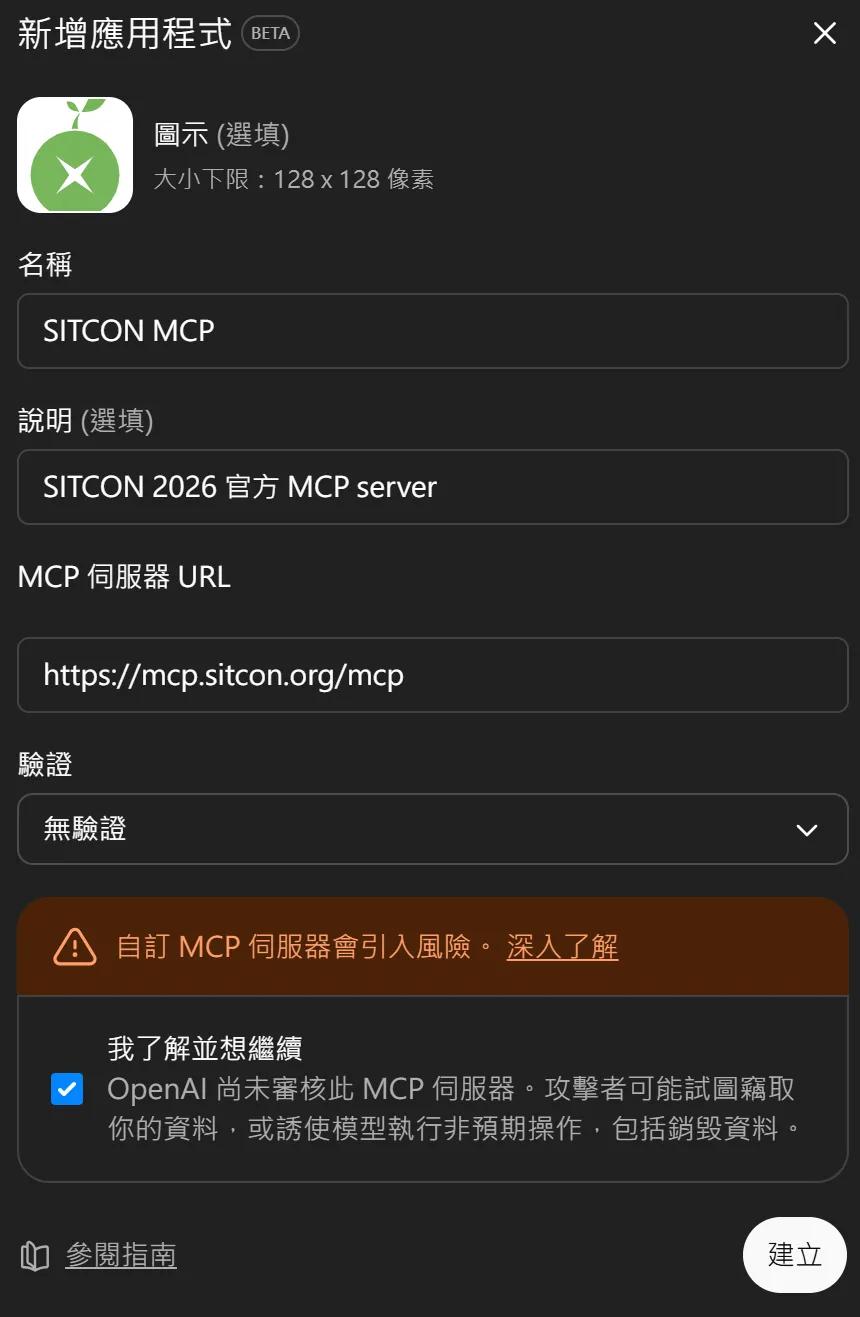
4. Fill in the MCP Server information and create the application
-
Name: SITCON MCP (or any name you prefer)
-
Description: SITCON MCP (or any description)
-
MCP URL: https://mcp.sitcon.org/mcp
-
Icon: Use SITCON Logo (or any icon)
-
Authentication: None
-
Check “I understand and wish to continue” (This MCP is open source, does not collect any data, and SITCON will not know you used it)
VS Code
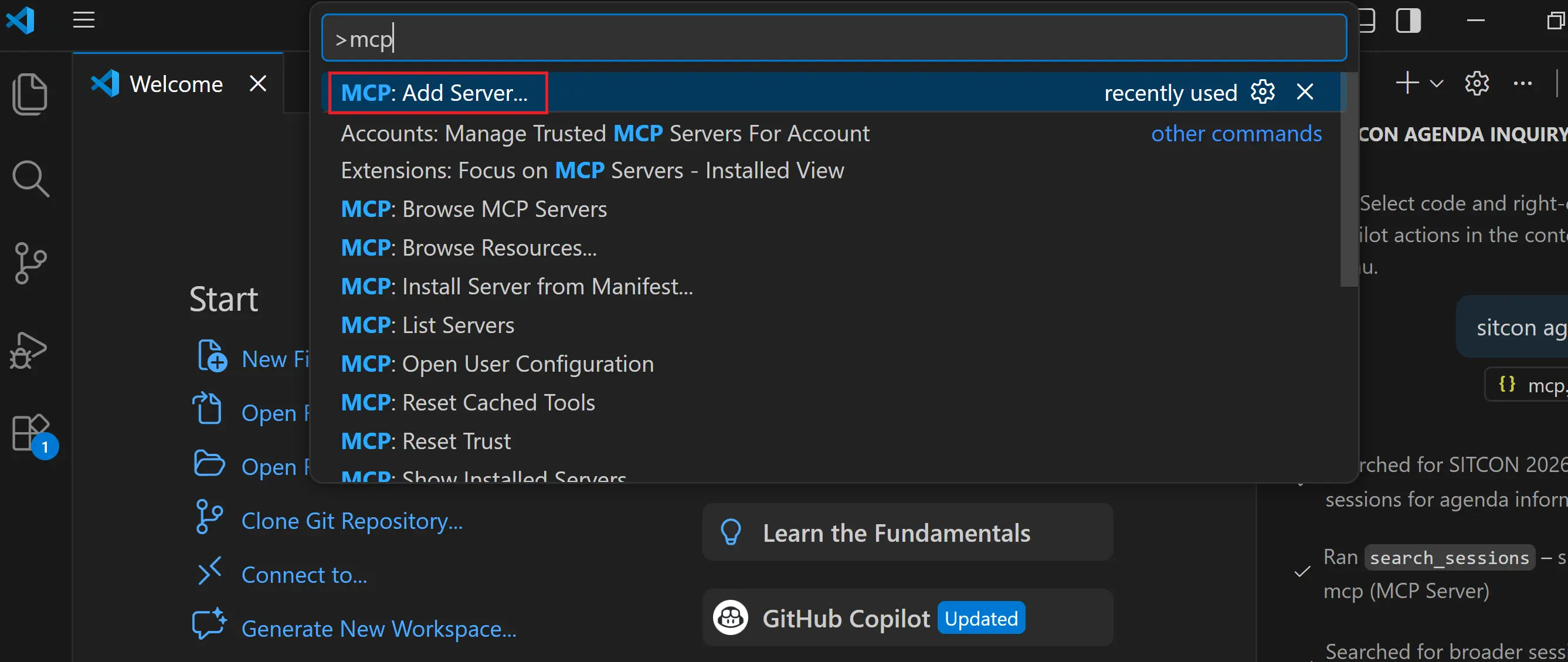
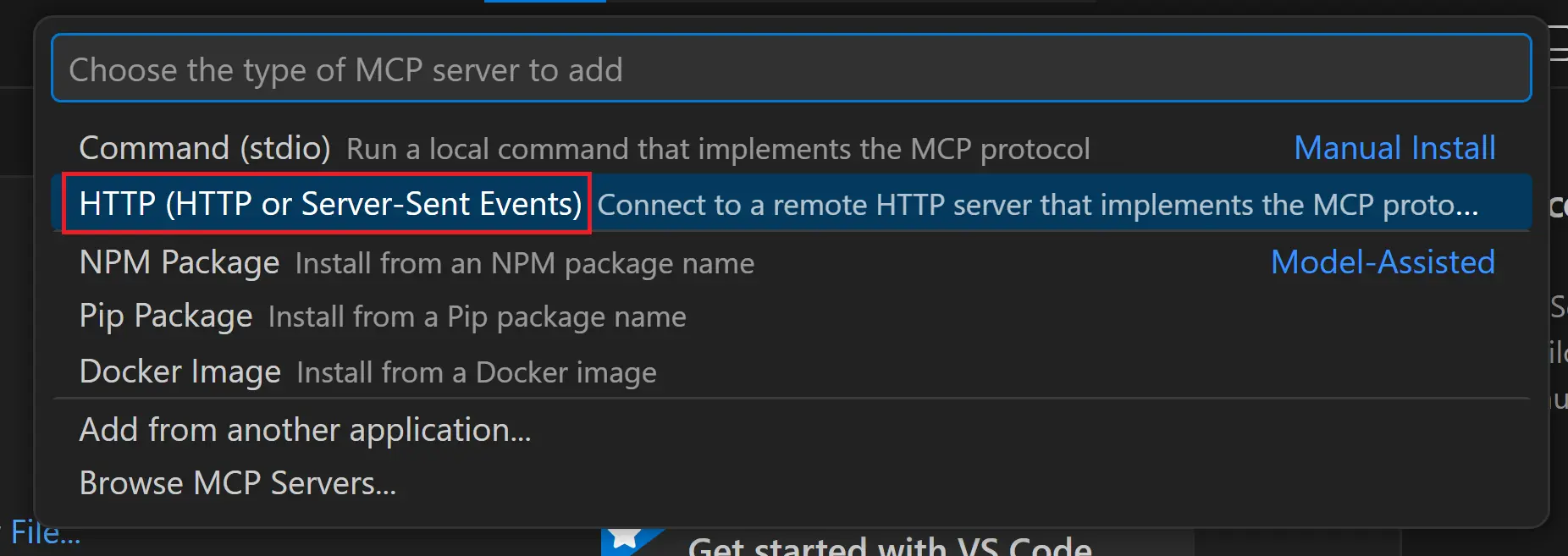
1. Open VS Code, press “Ctrl+Shift+P” to open the Command Palette, type “MCP”, and select “MCP: Add server”
2. Select “HTTP”
3. Enter the MCP Server URL

4. Enter the Server ID (or any ID)

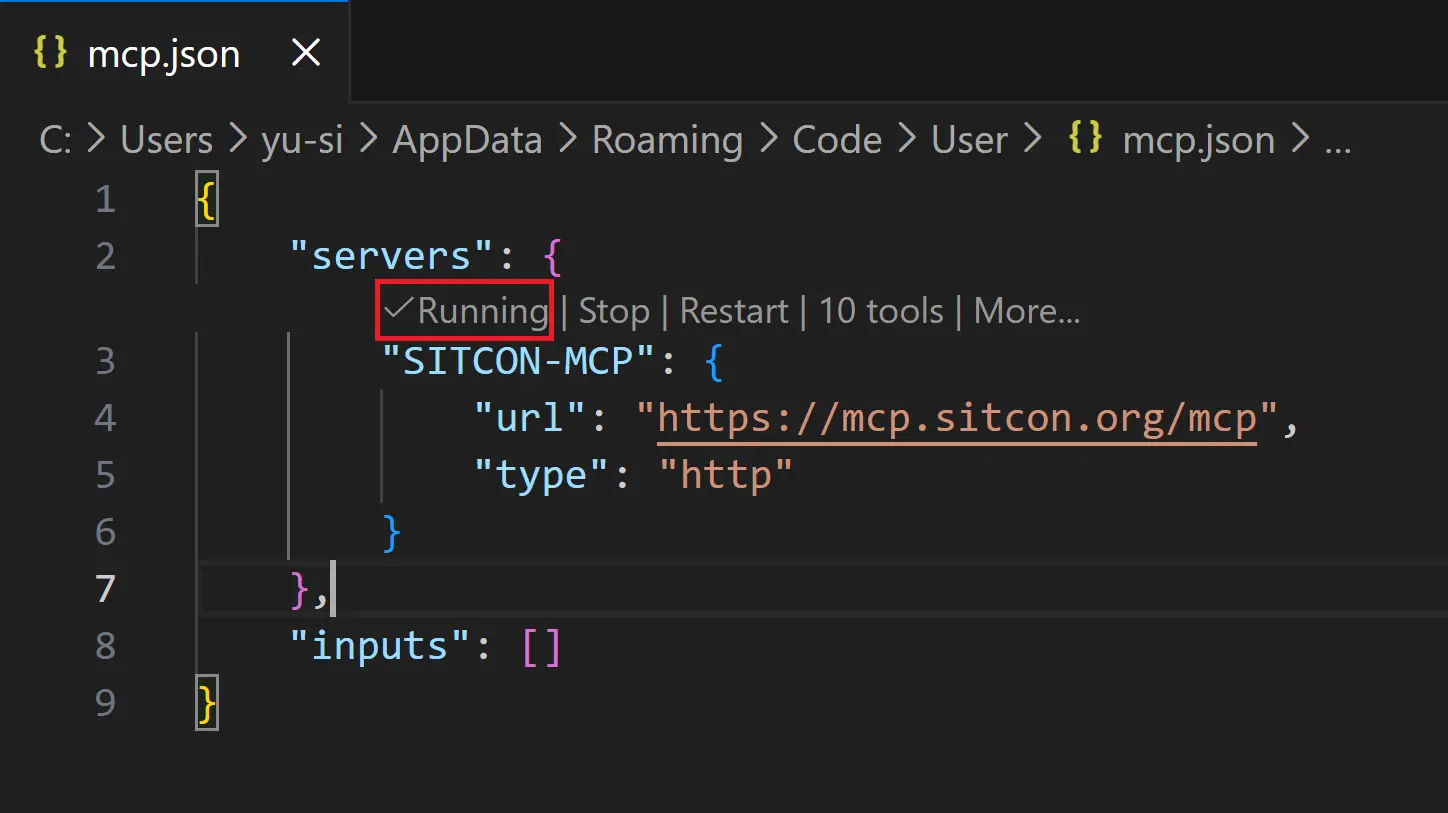
5. Once you see the created mcp.json file showing “Running”, it means success!
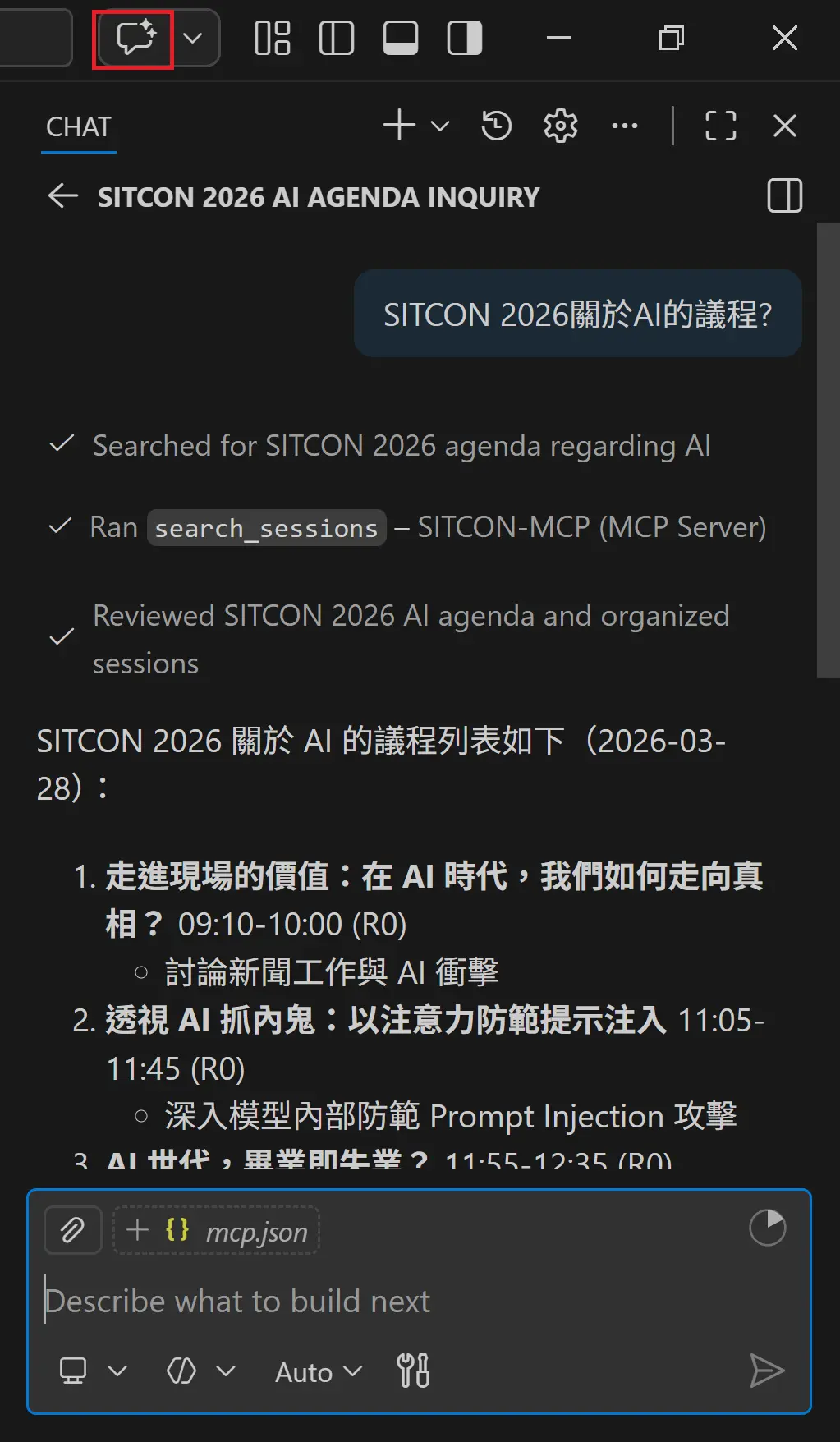
6. Open the chat window from the top right corner and start using it!
OpenCode
1. Create or edit opencode.json in your project directory
Add the following to your project root (or ~/.config/opencode/opencode.json for global config):
{
	"$schema": "https://opencode.ai/config.json",
	"mcp": {
		"sitcon": {
			"type": "remote",
			"url": "https://mcp.sitcon.org/mcp",
			"enabled": true
		}
	}
}
2. Start OpenCode and you’re ready to go!
opencodeOpenCode will automatically load the config and connect to the SITCON MCP Server. You can use the tools directly in your conversation.